
Conquer Countries Mod APK for PC (Windows 7, 10, 11 and Mac)
Supersonic Studios LTD

- Emulator Install
- Keyboard Controls
- Windows and Mac
- No Native Build
There is no Windows or Mac build. This page covers the routes that do work.
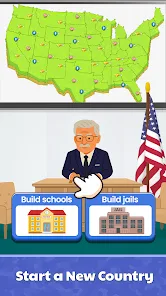
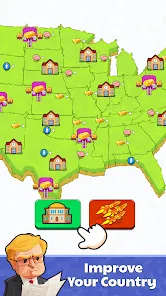
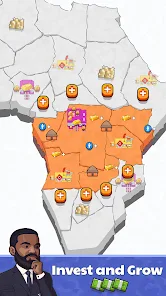
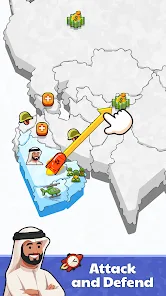
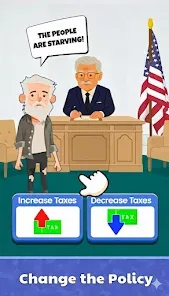
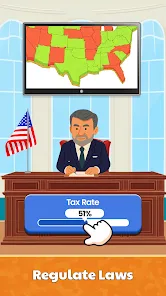
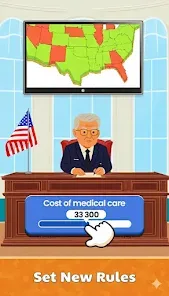
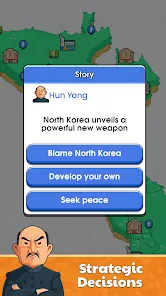
The same screens run at desktop resolution inside an emulator window.
Running the conquer countries mod apk for PC means running Android on your desktop, because Supersonic Studios has never shipped a Windows or Mac build. An emulator loads the same APK you would install on a phone and gives you a mouse, a keyboard and a screen large enough to read the map. This page covers which emulator to pick, the install steps for Windows 7 through 11 and macOS, the real system requirements, and the honest answer to whether a browser or unblocked version exists. The Android install lives on the conquer countries mod apk page.
Can you actually play Conquer Countries on PC?
Yes, through an Android emulator, and that is the only route the Conquer Countries mod apk for PC can take. There is no desktop client, no Steam listing, no Epic release and no official web player. Google Play’s own PC store entry for the game is not a native port either. It hands you Google Play Games for PC, which is itself an emulator layer that Google maintains.
What you get is the phone game in a resizable window. Nothing about the game changes. The map does not gain detail, the interface does not switch to a desktop layout, and there is no extra content. What changes is legibility and speed, and on a game this menu heavy that turns out to matter.
Why a desktop is genuinely better for this game
Conquer Countries asks you to read numbers and then click a small control. On a 6 inch phone the tax slider, the approval meter and the treasury counter compete for the same few hundred pixels, and mis-taps cost you turns.
- The map stops being cramped. Territory borders and unit counts are readable without pinching, which is where most phone mis-taps come from.
- A mouse beats a thumb on sliders. Tax rates and budget allocations are drag controls. Pointer precision means you set 51 percent when you meant 51 percent.
- Keyboard shortcuts collapse the menu depth. Bind the four main screens to number keys and a turn takes seconds instead of four taps each way.
- No battery drain and no thermal throttling. Long sessions run at a steady frame rate instead of degrading after twenty minutes.
- Multi instance lets you run parallel countries. Useful for testing a risky policy on a copy of your save before committing to it.
Which emulator to choose
Four are worth considering. They all run the game. They differ on how heavy they are and how much they get in your way.
| Emulator | Android base | Best for | Watch out for |
|---|---|---|---|
| BlueStacks | Android 9 and 11 | Easiest setup, best keymapping editor | Heaviest on RAM, bundles ad offers |
| LDPlayer | Android 9 | Lowest resource use, good on 4 GB machines | Fewer configuration options |
| MEmu | Android 7.1 to 9 | Older hardware and Windows 7 | Interface is dated |
| NoxPlayer | Android 7 and 9 | Multi instance work | Slower to update its Android base |
On a modern machine take BlueStacks for the keymapping editor alone. On anything with 4 GB of RAM or a mechanical hard drive, take LDPlayer, which is measurably lighter. For Windows 7 specifically, see the section below, because your choice narrows.
How to install the Conquer Countries mod apk for PC on Windows
These steps assume you are installing the modded build rather than pulling the stock game from the Play Store inside the emulator. The order below avoids the signature clash that catches most people.
- Install your emulator and let it finish first boot. The first launch unpacks an Android image and can take five minutes. Do not interrupt it.
- Skip the Google sign in. You do not need a Google account to sideload an APK, and a modded build cannot use Play Games services anyway.
- Allocate resources before you install anything. In the emulator settings give it 4 GB of RAM and 4 CPU cores if your machine has them to spare. Doing this after installation forces another restart.
- Download the APK using the button at the top of this page. Save it somewhere you can find, such as your desktop.
- Drag the APK onto the emulator window. Every emulator here accepts a drag and drop install. If yours does not respond, use the sidebar button labelled Install APK or APK Installer.
- Wait for the install toast, then launch from the emulator home screen. The icon appears alongside the emulator’s own apps.
- Set your keymap before the first real run. Open the keymapping tool, bind the economy, military, law and diplomacy screens to keys 1 through 4, and save.
Installing on Windows 7
Windows 7 still works, but your options have narrowed and the setup is fussier. BlueStacks dropped Windows 7 support in version 5.x, so the current installer will refuse to run. MEmu and older LDPlayer builds still install.
- Use MEmu, which maintains Windows 7 compatibility, or archive an LDPlayer 4.x installer.
- Enable virtualisation in your BIOS. On hardware old enough to be running Windows 7 it is usually switched off by default, and without it the emulator runs at roughly a fifth of its normal speed.
- Install the DirectX 9 runtime and the Visual C++ 2015 redistributable. Newer emulators assume both are present and fail with an unhelpful error when they are not.
- Update your graphics driver. Windows 7 machines frequently run whatever driver shipped with the machine, and the emulator falls back to software rendering.
Expect a slower experience than on Windows 10 or 11 regardless. The game itself is undemanding, but the Android layer underneath it is not.
Playing on a Mac
BlueStacks and NoxPlayer both publish macOS builds and both run the game on Intel and Apple Silicon machines. On Apple Silicon the emulator runs an ARM Android image natively, which is actually faster than the equivalent on Intel.
The one difference worth planning for is the trackpad. Drag controls that feel fine with a mouse are awkward on a trackpad, so keymapping matters more on a laptop than it does on a desktop.
Minimum system requirements
| Component | Minimum | Comfortable |
|---|---|---|
| Operating system | Windows 7 SP1 or macOS 11 | Windows 11 or macOS 13 |
| Processor | Dual core with virtualisation | Quad core, Intel, AMD or Apple Silicon |
| RAM | 4 GB | 8 GB or more |
| Free disk space | 10 GB | 15 GB on an SSD |
| Graphics | Any GPU with an updated driver | Dedicated GPU |
The 10 GB figure is the emulator’s Android image rather than the Conquer Countries mod apk for PC itself. Conquer Countries contributes about 600 MB of that once installed. Virtualisation support is the requirement people miss: without VT-x on Intel or SVM on AMD the emulator will start and then run unusably slowly, with no error explaining why.
Is there a browser version, an unblocked version or a way to play with no download?
No, and this is worth being direct about because a lot of pages imply otherwise. Conquer Countries is a Unity built Android application. There is no HTML5 export, no official web player and no cloud streaming deal, so nothing legitimate loads it in a browser tab.
Sites advertising Conquer Countries online free, playable in a browser with no download, fall into three categories. Some serve a different game with a similar name. Some show a video of gameplay behind a fake loading bar. Some run a survey gate that never produces a file. None of them are the game.
The unblocked framing usually comes from school or office networks. An emulator does not solve that either, because a managed machine will not let you install one. If the network is the obstacle, the realistic answer is playing on your phone on mobile data.
Setting up controls
Every emulator here ships a keymapping tool that overlays your keyboard onto screen positions. A setup that works well for this game:
- Number keys 1 through 4 for the economy, military, law and diplomacy screens.
- Space for the end turn or confirm button, which is the control you press most.
- Escape mapped to the Android back gesture, so you leave a menu without hunting for the corner arrow.
- Mouse wheel bound to map zoom, which is far better than the pinch emulation default.
Save the profile once it works. Emulator updates occasionally reset keymaps, and rebuilding one from memory is tedious.
Problems specific to running it on a desktop
The game launches then closes immediately
Usually an ARM versus x86 mismatch. Some emulator builds run an x86 Android image and need ARM translation enabled, which is a toggle in settings on LDPlayer and NoxPlayer. Turn it on and reinstall the APK.
Everything runs in slow motion
Virtualisation is off in your BIOS. Reboot into BIOS or UEFI, enable VT-x on Intel or SVM mode on AMD, save and reboot. On Windows, Hyper-V and Windows Sandbox can also claim the virtualisation layer and starve the emulator, so disable both if enabling VT-x alone does not fix it.
The window is the wrong shape and the interface is cut off
The emulator is set to a tablet or desktop resolution. Set the display to a phone profile, 1080 by 1920 at 320 DPI, and restart the emulator. The game does not have a tablet layout and will not adapt.
The APK will not install
If the stock game is already installed inside the emulator from the Play Store, remove it first. The signature clash behaves exactly as it does on a phone, and the emulator’s error message is no more informative.
Is the Conquer Countries mod apk for PC worth it?
If you play in long sessions, the Conquer Countries mod apk for PC is worth the setup. The game is a spreadsheet wearing a cartoon, and spreadsheets are better on a big screen with a pointer. The emulator overhead is real but the game is light enough that a machine from the last five years will not notice it.
If you play in five minute bursts, no. Booting an emulator to take three turns is slower than picking up your phone, and nothing about the desktop version rewards short sessions. The honest recommendation is to use both, with the phone for quick turns and the desktop for the long ones, accepting that the two saves stay separate because no cloud sync exists on a modded build.
Frequently asked questions
Is there an official Conquer Countries PC version?
No. Supersonic Studios publishes the game for Android only, and there is no Windows executable, Mac application, Steam release or official web build. Every desktop route goes through an Android emulator, including the Google Play Games for PC listing, which is Google’s own emulator layer rather than a native port.
Which emulator runs it best on a low end laptop?
LDPlayer, by a clear margin. It uses less memory than BlueStacks and starts faster on a mechanical hard drive. Give it 4 GB of RAM and two CPU cores, set the display to a phone profile, and it will run the game acceptably on hardware that struggles with the alternatives.
Can I play Conquer Countries in a browser without downloading anything?
No. The game is a Unity Android application with no HTML5 build and no official cloud streaming, so nothing legitimate runs it in a browser tab. Pages advertising an online or unblocked version are typically serving a different game, a gameplay video behind a fake loader, or a survey gate.
Does the mod work the same inside an emulator?
Yes. An emulator is a full Android environment, so the modified build behaves exactly as it does on a phone. The same limitations apply too, which means no Google Play Games sign in, no cloud saves and no automatic updates.
Will it run on Windows 7?
Yes, with a narrower choice of emulator. Current BlueStacks releases dropped Windows 7 support, so use MEmu or an archived LDPlayer 4.x build. You will also need virtualisation enabled in BIOS, the DirectX 9 runtime and the Visual C++ 2015 redistributable, all of which newer emulators assume are already present.
Can I move my phone save to the desktop?
Not through the game. Cloud saving requires Google Play Games, which a modified build cannot sign in to. The only route is copying the app’s data folder off a rooted phone and into the emulator’s file system, which is more effort than most players will want for a game that starts a new run in seconds.
Why does the game run in slow motion on my PC?
Virtualisation is almost certainly disabled. Enable VT-x on Intel or SVM mode on AMD in your BIOS or UEFI, then reboot. If it is still slow after that, Hyper-V or Windows Sandbox may be holding the virtualisation layer, so disable both in Windows Features.
How much disk space do I need in total?
Around 10 GB, and 15 GB is more comfortable. Most of that is the emulator’s Android image rather than the game itself, which occupies roughly 600 MB once installed. An SSD makes a noticeable difference to emulator boot time.
Install your emulator first, then drag this file onto its window.
Conquer Countries artwork, screenshots and branding belong to Supersonic Studios LTD and appear on this page purely to illustrate the setup being described. BlueStacks, LDPlayer, MEmu and NoxPlayer are trademarks of their respective owners and this page is not affiliated with any of them. This site operates independently of Supersonic Studios LTD, Google LLC and every emulator vendor named above, with no endorsement or sponsorship from any of them. Copyright holders who believe something here infringes their rights should use our DMCA page, and we will respond without delay.